Getting started with Form 3520
How to prepare a Form 3520 in Agena Software, from creating your account to mailing the signed return. For the rules behind the form—who must file, thresholds and penalties—see the Form 3520 Guide. For account questions, see Help.
Last updated: October 25, 2026 • Agena Software LLC
1Create your account
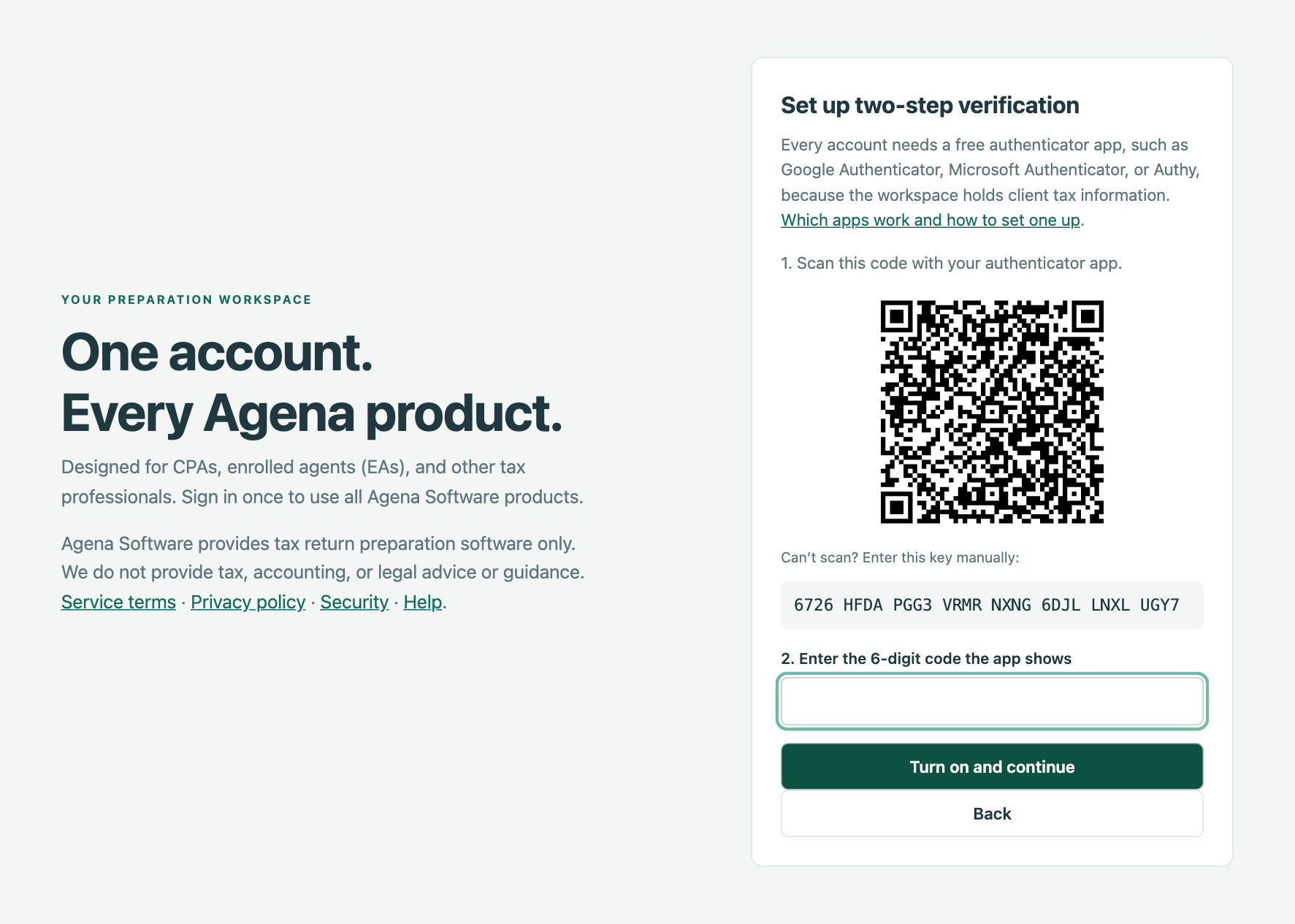
Choose Sign in, then create an account with your name, firm name, email and a password of at least 12 characters. Setup continues with two-step verification: scan the QR code with an authenticator app and enter the 6-digit code.
Save the 10 recovery codes shown at the end. They are shown once, and they are how you sign in without your phone. The Help page lists suitable apps and what to do with a new phone.
Your account starts as a firm of one. To add colleagues, open Firm and invite them by email; returns are shared within the firm.
2Start a return
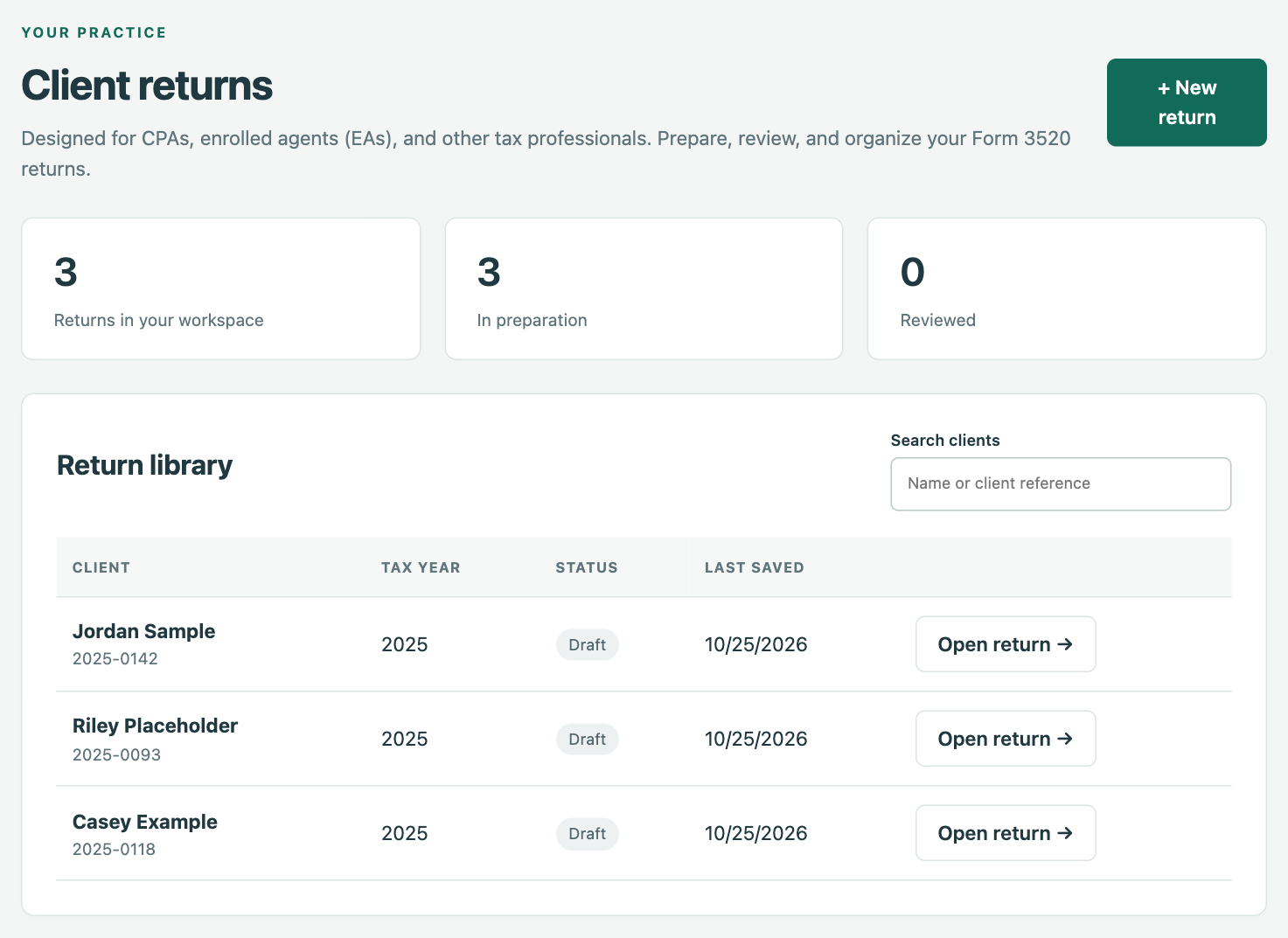
After you sign in, choose Form 3520 from your products, then + New return. Each return covers one taxpayer (or spouses filing jointly) and one tax year.
The return opens on the Client page. The tabs across the top are the sections of the return; you can work through them in any order, and your answers are saved as you go.
3Client page: who is filing
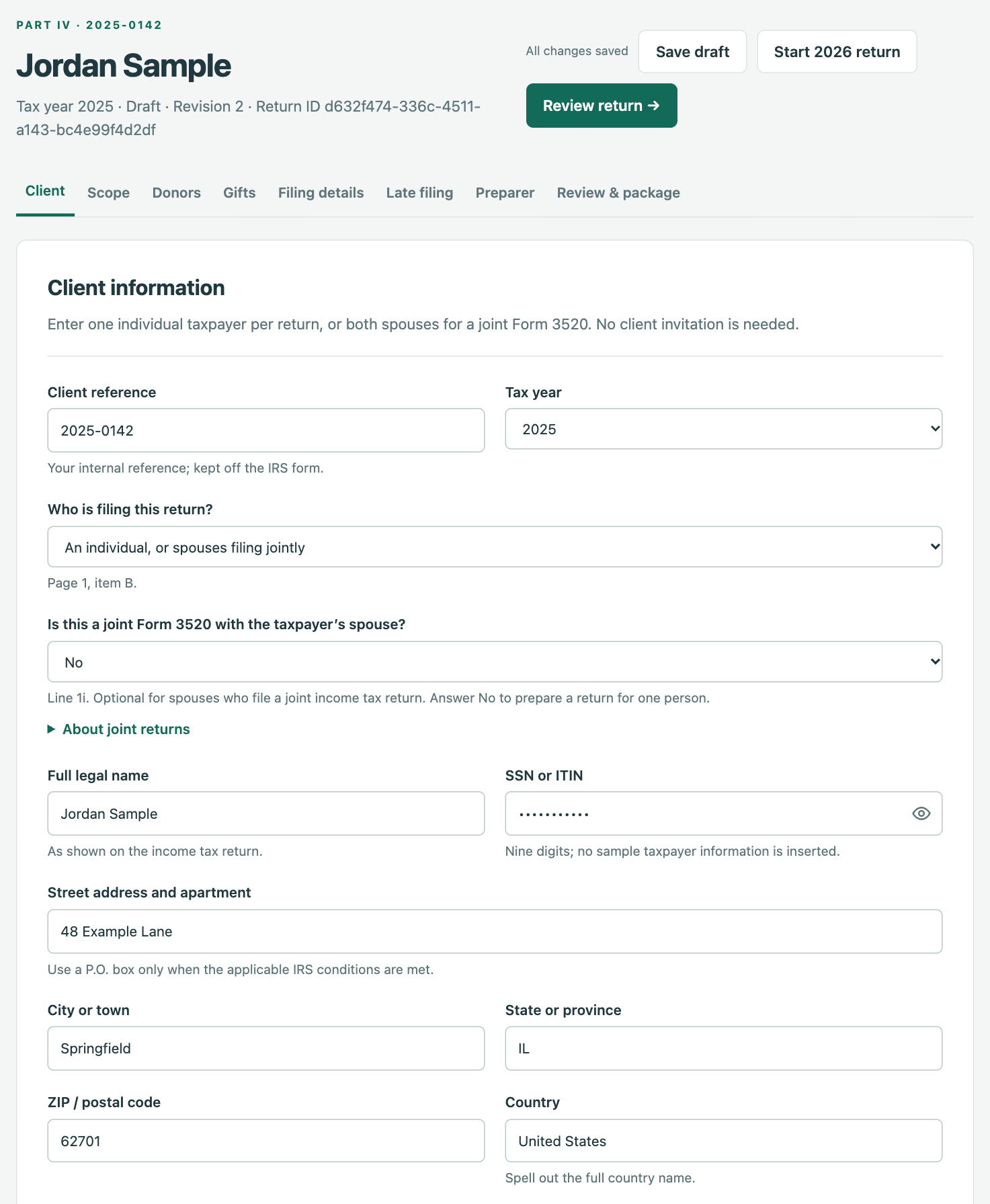
Enter your own client reference (it stays off the IRS form), the tax year, and who is filing: an individual or spouses filing jointly, an executor, or a domestic trust reporting gifts it received. Then the name, SSN or ITIN and address as shown on the income tax return.
For a joint return, answer Yes to the joint question and enter both spouses in the same order as on Form 1040.
4Scope page: choose the Parts
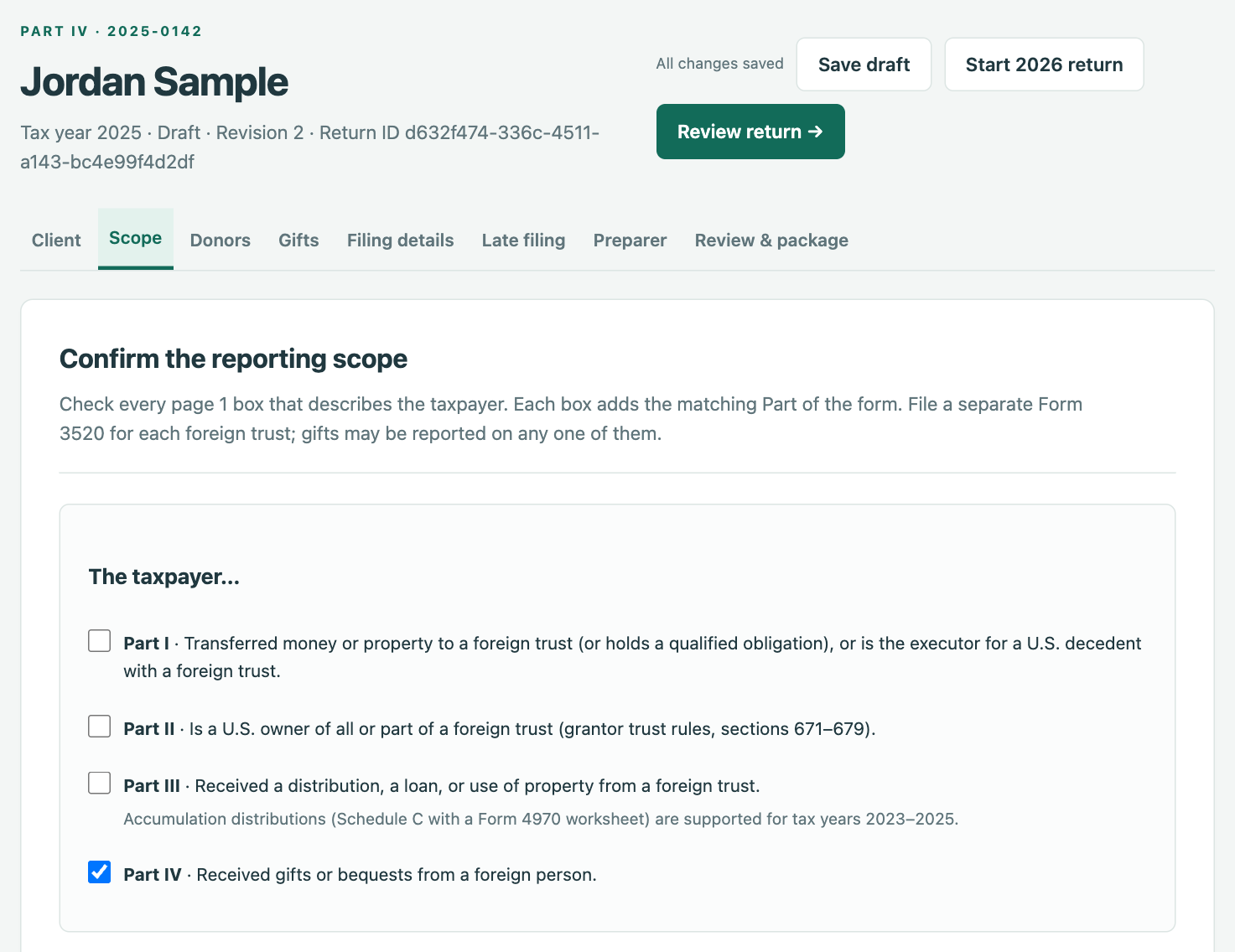
Check every page 1 box that describes the taxpayer. Each box adds the matching tabs:
- Part I, transfers to a foreign trust
- Part II, owner of a foreign trust (adds the substitute Form 3520-A questions when the trust didn’t file its own)
- Part III, distributions from a foreign trust
- Part IV, gifts and bequests from foreign persons
File a separate Form 3520 for each foreign trust. Gifts can be reported on any one of them, or on a gifts-only return.
5Trust Parts (I–III), if checked
On Foreign trust, enter the trust’s name, EIN and address, and its U.S. agent if it has one. Then complete the Part tabs that appeared: transfers and qualified obligations, ownership details, and distributions. Part III is laid out like the form; grey amounts are calculated as you type, including Schedules A, B and C where they apply.
6Gifts (Part IV), if checked
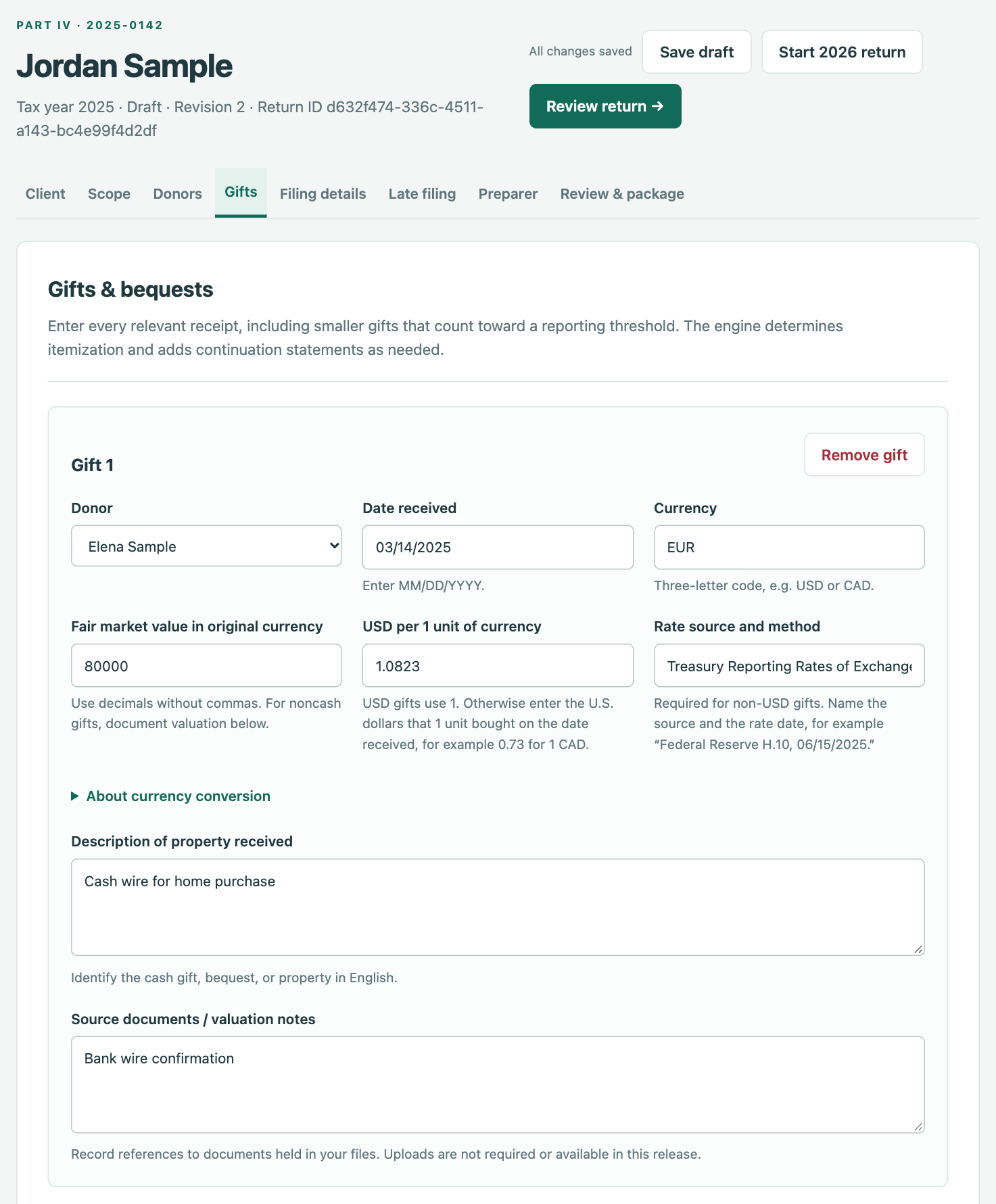
On Donors, enter each foreign donor once. Give related donors the same group label so their gifts are added together for the $100,000 test.
On Gifts, enter every gift or bequest, including smaller ones that count toward a threshold. For a foreign-currency gift, enter the amount, currency, exchange rate and its source; the software converts it and decides which gifts must be itemized and when a continuation statement is needed.
7Filing details, late filing and preparer
Filing details covers the return type (original or amended) and any extension. Late filing can prepare an optional reasonable-cause statement for a late Part IV return; whether and how to request penalty relief is your judgment.
On Preparer, enter the paid preparer section of page 6. Preparation notes entered there stay in your workpapers, not on the form.
8Review & package: resolve issues
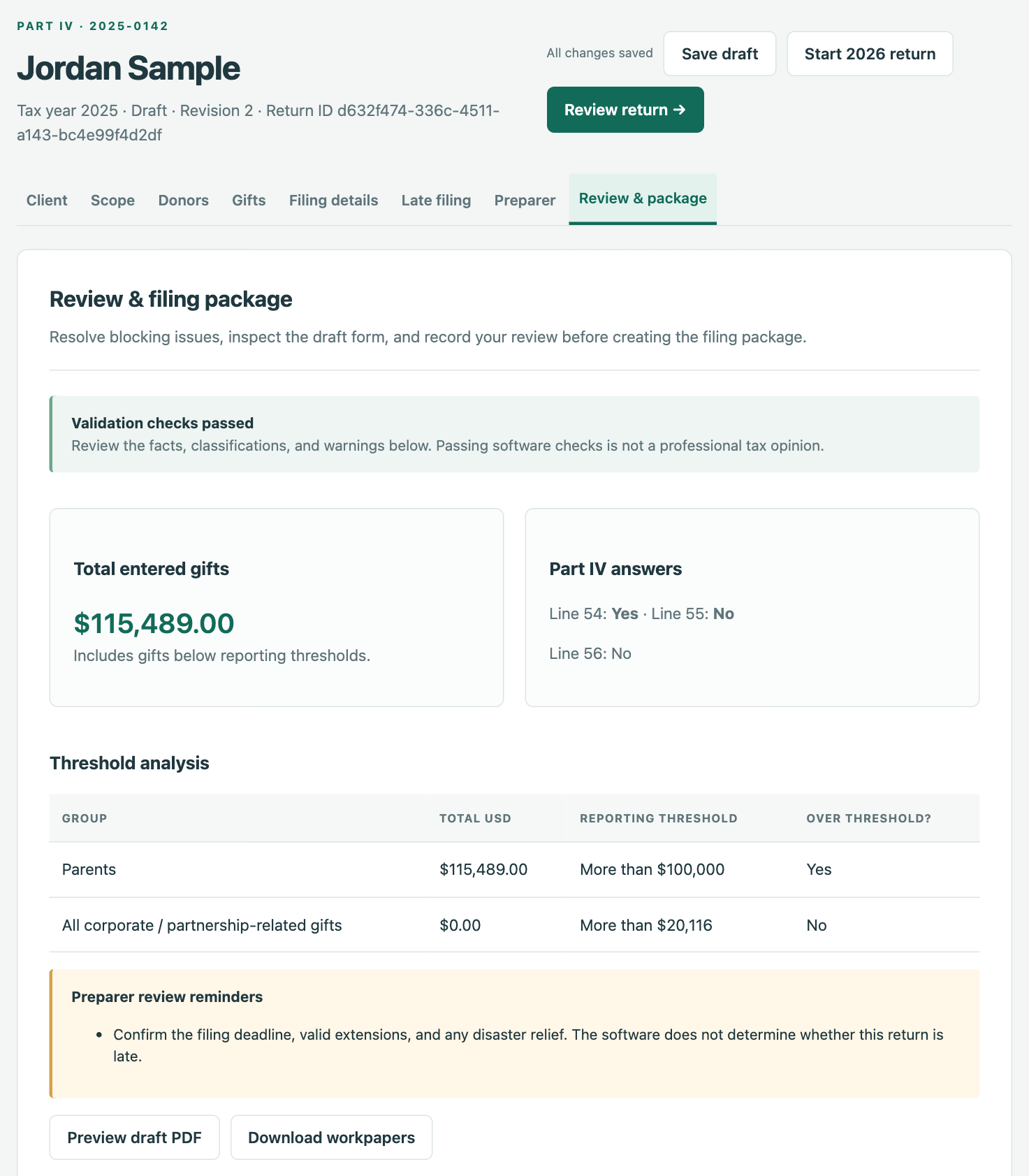
Open Review & package. It lists anything that blocks approval; click an issue to jump to its entry. A few checks that call for professional judgment offer Override with a reason: record why the check doesn’t apply (at least 20 characters), and the reason, your name and the time are printed in the workpapers.
Below the issues are the threshold and calculation summaries and the preparer review reminders, which don’t block approval. Use Preview draft PDF at any time; while issues are open, the preview starts with a page listing them. Before payment, previews show sample values in place of client details.
9Pay and approve
Drafting, review and previews are free. When the return is ready, pay for it (per return or with a firm plan), then check the review statement and choose Approve & create filing package. If your firm requires review, a preparer submits the return and a reviewer, admin or owner approves it.
Approval saves a preserved version. The filing package contains the Form 3520 with its required statements, the workpapers, and a mailing checklist. Keep the workpapers and checklist; mail only the form. Editing the return afterwards starts a new draft that needs a new approval.
10Sign and mail
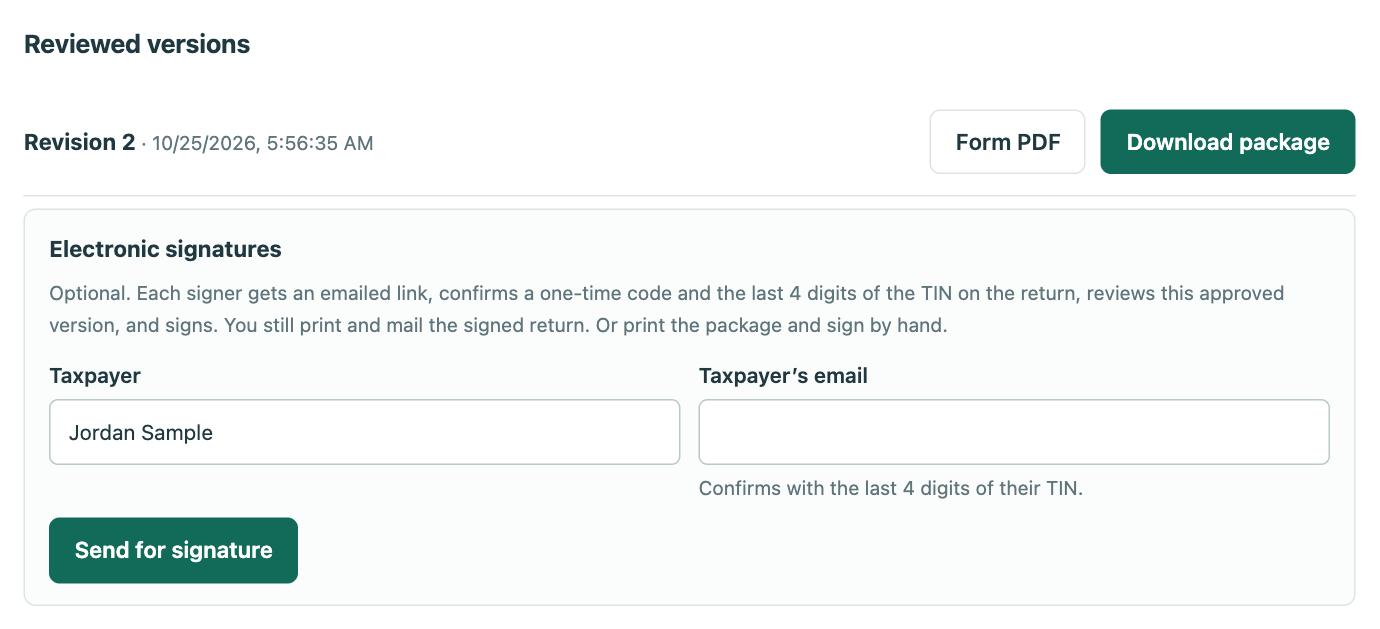
The taxpayer can sign electronically: under the approved version, choose Send for signature. Each signer gets an emailed link and confirms with a one-time code and the last 4 digits of their TIN. Or print the form and sign by hand. See Electronic signatures.
Form 3520 is filed on paper. Mail the signed form to the address on the mailing checklist. Next year, open the finished return and choose Start next year’s return to carry the client, trust and donor details forward.
Questions?
Email support@agenasoftware.com with your account email. Never send passwords, authenticator codes, recovery codes, or client tax information. Agena Software provides preparation software only, not tax, accounting or legal advice.